Google's Gemini Is Now Your Car Helper: What It Does for You
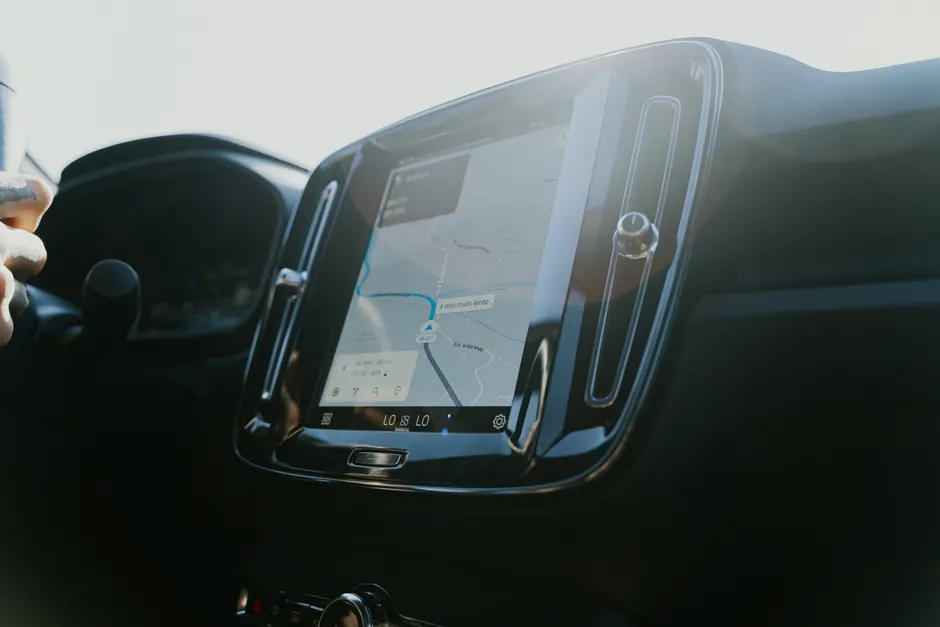
Gemini is taking over from Google Assistant in cars that use Android Auto. Engadget lists the change as one of the best Android Auto updates for easier long drives.
You have to turn it on yourself. On your phone, go to Settings > Connected devices > Android Auto > Manage your digital assistant > Digital assistants from Google > Gemini. This matters in shared cars, because your phone decides which helper answers, not the car screen.
Messages work differently now. Gemini can read several texts together as one short summary, write a reply when you ask, add your arrival time to a reply, and translate messages into over 40 languages. You can also turn message alerts off with the Show message notifications setting, so you can check messages later at a stop or drive with fewer alerts at night. Engadget
Gemini remembers what you just asked about. You can ask about a restaurant, then ask about parking or reviews without saying its name again. That means less repeating and fewer mix-ups when you speak in short phrases.
Music works by idea, not exact names. You can say "play something upbeat" and Gemini will pick music from your usual music app. You do not need to give the artist, album, or playlist name.
Gemini can also look in Gmail, Calendar, and note apps. It can find an address from an email and read out your plans for the day, so you do not have to copy and paste before you leave.
The other car settings still matter on long trips. Dark mode cuts screen glare and helps at night. You can change video resolution, set day or night mode for set times, and turn wireless Android Auto on or off. Once paired, wireless connects on its own with no cable to plug in.
Coverage is not always there on the road. Android Auto lets you save maps and music ahead of time, and you can use voice commands while moving. Saved routes and playlists keep working in dead zones, mountain passes, and busy holiday roads where phone signal drops.
Two extra details help with setup. To install apps from outside the normal process, first turn on Developer Mode by going to Settings > About and tapping Build number seven times fast. There is no way to hide an app by pressing and holding its icon on the car screen. That setting is handled elsewhere.
The broader context here will feel familiar if you have used your phone with your car before. The car screen stays the same, your phone does the work, and voice is now the main way you control it.
In my view, remembering context and summing up texts helps more than any one new app. Long drives bring lots of small alerts, route changes, and music choices, and a helper that groups them means less fiddling while driving. For fleets and work cars, the link to Gmail and Calendar is handy but brings questions about voice security, privacy for passengers, and clearing accounts in rentals.